Alignment snapping
As you move or resize, blue guides appear when an edge or centre lines up with the canvas or another object, and the object snaps to it. Shift constrains movement to straight lines and 45°.
Last updated Aug 29, 2026
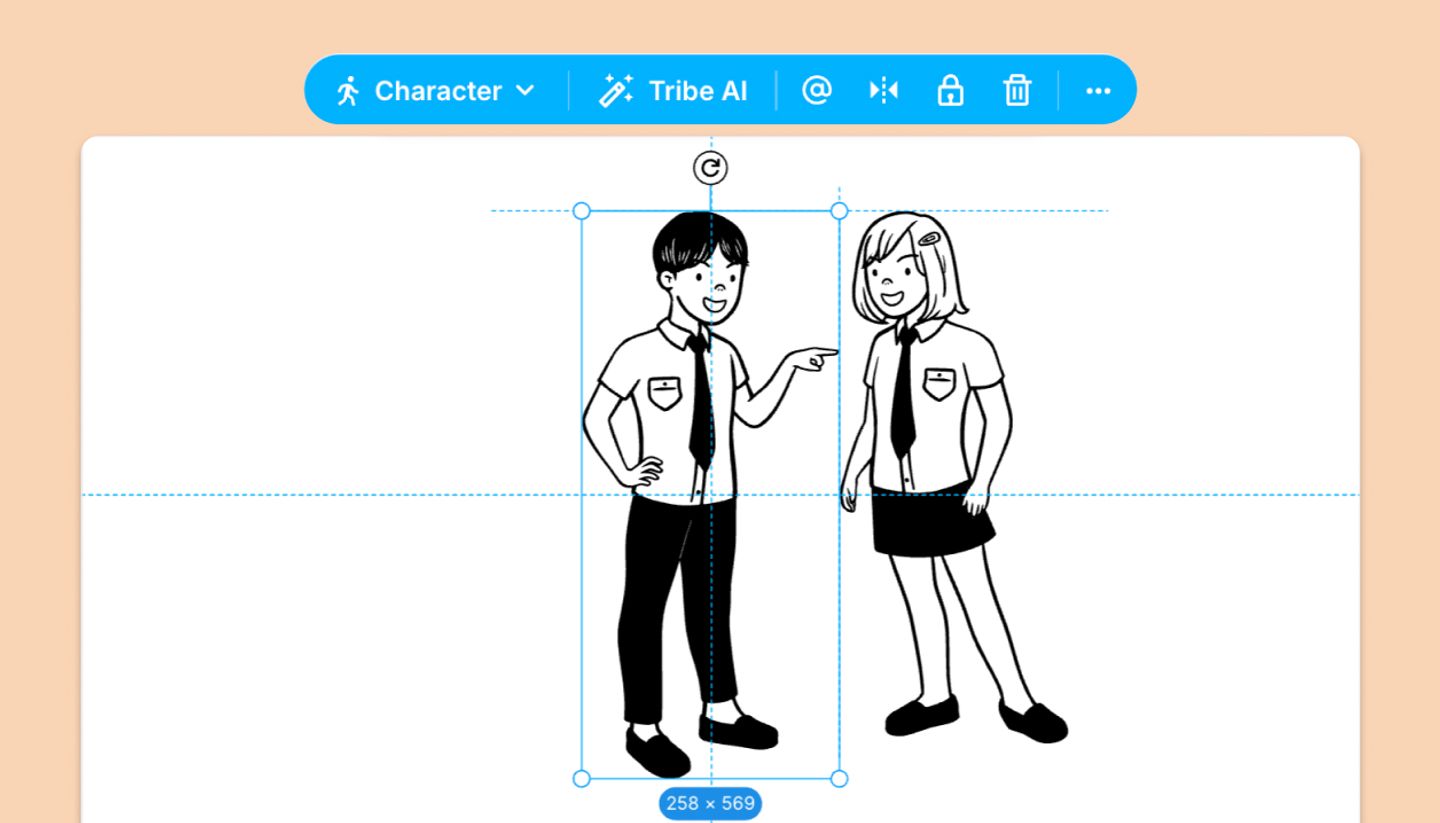
Snapping is always on and needs no setup. Drag an object and, within a few pixels of alignment, a thin blue line shows what it's lining up with and the object jumps onto it.
What it snaps to
- The canvas: its left, right, top and bottom edges and its horizontal and vertical centre. Canvas guides run the full width or height.
- Other objects: their edges and centers. These guides are short and run only between the two objects that line up.
- While resizing: edges snap, centers don't. Rotated objects don't snap.
Modifier keys
- Shift while dragging: replaces snapping with a hard constraint to horizontal, vertical and 45° directions.
- Option (Alt) while resizing a group or multi-selection: scales about the centre and skips snapping.
- Arrow keys: nudge the selection without snapping, for fine placement.
Related articles
Keyboard shortcutsWas this article helpful?
Need more help?
Send us a message. We reply within 3 days, usually sooner.