Keyboard shortcuts
Every shortcut in the editor, for Mac (⌘) and Windows (Ctrl): the canvas, the layers panel and shot list, the script editor, the table view, video editor, presenting and comments.
Last updated Aug 29, 2026
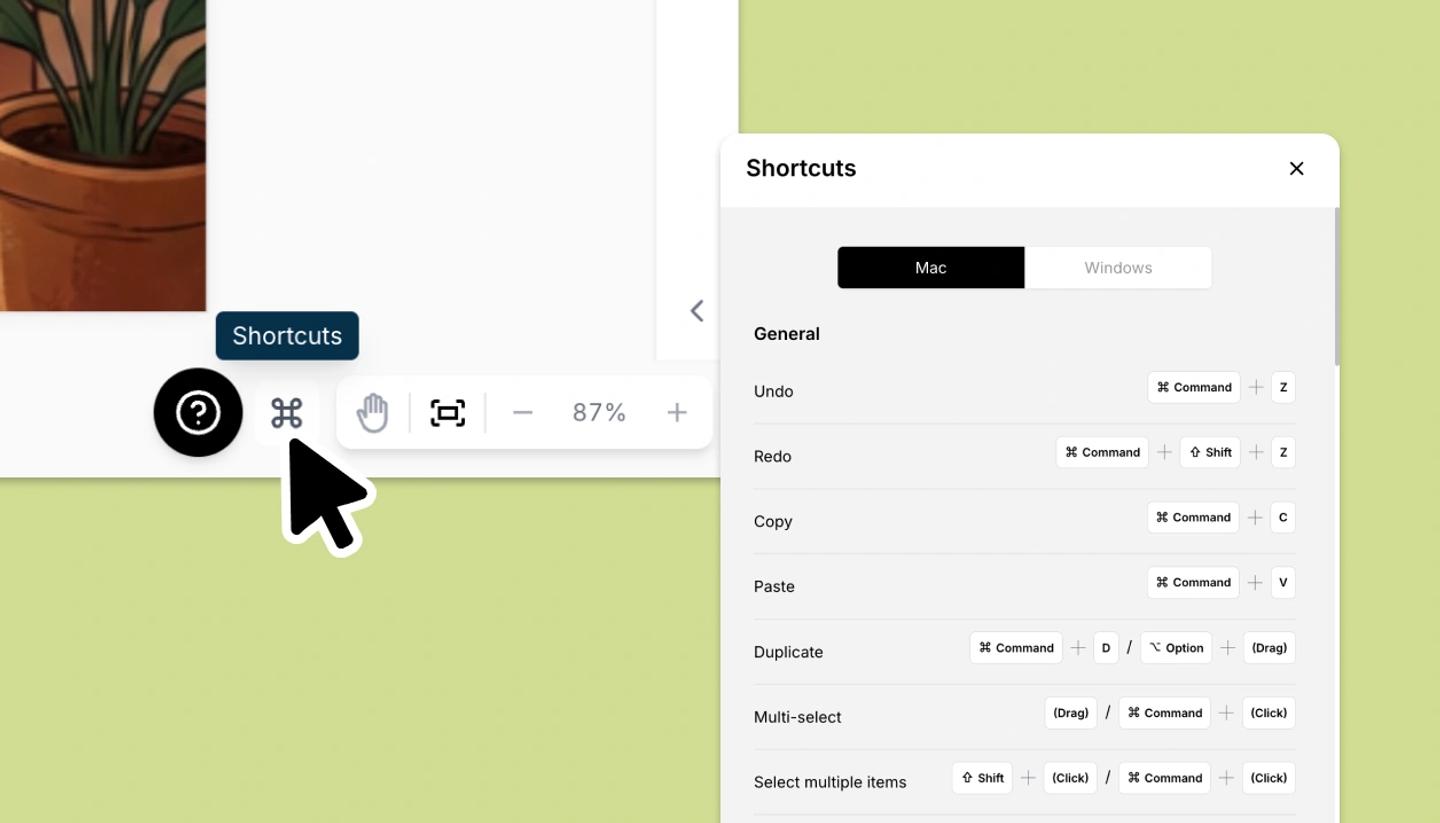
Shortcuts work on desktop and on a tablet with a keyboard. To see the canvas shortcuts in the app, click Shortcuts in the editor's footer. The panel shows the keys for your system, and you can switch between Mac and Windows. Shortcuts don't work in the phone editor or while you are typing in a text field. The panel isn't available on projects you can only view. Below, ⌘ is the Mac key and Ctrl the Windows key unless a line says otherwise.
Canvas: general
- Undo:
⌘ Z(Ctrl Z). Redo:⌘ Shift Zon Mac,Ctrl Yon Windows. The same keys work in the script editor and the table view. - Copy, Paste:
⌘ Cand⌘ V(Ctrl C,Ctrl V). Pasting plain text with nothing selected drops it onto the canvas as a new text box. There is no Cut shortcut. - Duplicate:
⌘ D(Ctrl D), or holdOption(Alton Windows) while dragging an item. - Select several items: drag a box around them, or
Shiftclick each one (⌘click on Mac andCtrlclick on Windows also work). - Select all:
⌘ A(Ctrl A). - Edit the selected item:
Enter, or double-click it. Esc: deselect, leave editing, close the open side menu, or leave the pen.- Delete the selected items:
BackspaceorDelete.
Canvas: add
Nadds a character,Ba speech bubble,Ta text box,Ra rectangle.Pswitches to the pen,Vback to the selection tool.
Text formatting
- Bold, Italic, Underline:
⌘ B,⌘ I,⌘ U(Ctrl B,Ctrl I,Ctrl U). They work while editing a text box on the canvas and in the script editor and shot fields. - Strikethrough:
⌘ Shift X(Ctrl Shift X), in the script editor and shot fields.
Canvas: navigation and zoom
- Move the selected items: the arrow keys. Hold
Shiftfor a bigger step. - Zoom in:
=(the + key without Shift), or⌘ =(Ctrl =). Zoom out:-, or⌘ -(Ctrl -).⌘orCtrlwith the scroll wheel, and a trackpad pinch, zoom at the pointer. - Zoom to 100%:
Shift 0or⌘ 0(Ctrl 0). Zoom to fit:Shift 1or⌘ 1(Ctrl 1). - Move the canvas: hold
Spaceand drag.Hswitches the hand tool on and off. - Pen stroke width, while the pen is active:
[or↓thinner,]or↑thicker. - Hold
Shiftwhile dragging a corner handle to keep the item's proportions.
Canvas: arrange and transform
- Crop an image:
Optiondouble-click on Mac,Altdouble-click on Windows. - Flip a character or image horizontally:
⌘ H(Ctrl H). Turn around has no shortcut. - Bring to front, send to back:
]and[with an item selected. Bring forward, send backward one step:⌘ ]and⌘ [(Ctrl ],Ctrl [), orShift ]andShift [. - Lock or unlock:
Option Shift LorCtrl Shift Lon Mac,Ctrl Shift Lon Windows. - Group or ungroup:
⌘ G(Ctrl G).
Layers panel and shot list
- Layers:
Shiftclick selects a range of rows,⌘click (Ctrlclick) adds or removes one row.BackspaceorDeletedeletes the selected layers. While renaming,Enterconfirms andEsccancels. - Shot list:
↑and↓move to the previous or next shot when nothing on the canvas is selected.Shiftclick selects a range of shots,⌘click (Ctrlclick) adds or removes one.BackspaceorDeletedeletes the selected shots while the list has focus, andEscclears the selection.
Script editor
These apply in the Script tab of the canvas side panel and in the Writer view.
Enterstarts a new paragraph; in the middle of a line it splits the paragraph at the cursor. A line that is only a speaker name, or NAME: speech, becomes a dialogue row onEnter.Enternever leaves the editor.Tabon an action or caption line starts a dialogue row and opens the speaker picker.Tabin a dialogue row continues with the same speaker (in a dual dialogue pair it jumps to the second speaker).Shift Tabtakes you out of the editor./opens the block menu (Dialogue, Caption, Note, Lyric): type to filter,Enterpicks,SpaceorEsccloses it.@mentions an element and#references a scene or shot.⌘ Enter(Ctrl Enter) splits the shot at the cursor: everything after it becomes the next shot's script. One undo reverts the whole split.Backspaceat the start of a line removes one layer per press: the extension, then the speaker, then the block type, then it merges the line into the previous paragraph.Backspaceon an empty line removes it.⌘ Shift ↑or⌘ Shift ↓(Ctrl Shift ↑,Ctrl Shift ↓) moves the current block.⌘ ↑or⌘ ↓jumps to the start or end of the script.Escselects the current row. With rows selected,↑and↓move the selection, andShift ↑orShift ↓extends it.⌘ Shift ↑or⌘ Shift ↓moves the rows.⌘ Ccopies them and⌘ Xcuts them. When you paste them into any shot's script, they keep their row types and speakers.Backspacedeletes them,Entergoes back to typing, andTableaves the editor.⌘ A(Ctrl A) selects the current line first; press it again to select the whole script.⌘ Zundoes typing in the current line first; once the line is clean it undoes script changes, including a shot split.
Table view
- The arrow keys move the active cell,
Shiftwith an arrow extends the selection,TabandShift Tabmove to the next or previous cell. EnterorF2edits the cell (on a Frame cell it opens the canvas).Escdeselects.BackspaceorDeleteclears the selected cells.⌘ A(Ctrl A) selects every cell.⌘ Cand⌘ Vcopy and paste cells.⌘ Zand⌘ Shift Z(Ctrl Z,Ctrl Y) undo and redo.
Present, comments and Magic Edit
- Presenting, and a shared project in fullscreen:
←or↑goes to the previous shot,→or↓to the next.Escleaves fullscreen. - Comments:
Enterposts,Shift Enteradds a line,Esccancels or stops placing a pin.@mentions a collaborator. - Magic Edit and Erase:
[and]make the brush smaller or bigger;Esccloses the tool.
Video view
- Play or pause:
Space. - Step the playhead:
←and→move a tenth of a second; holdShiftfor a full second. Stepping pauses the video. ↑jumps back to the previous shot boundary,↓forward to the next.HomeandEndjump to the start or the end of the video.- Zoom the timeline:
⌘ =(Ctrl =) in,⌘ -(Ctrl -) out.⌘ 0(Ctrl 0) fits the whole video in view.⌘orCtrlwith the scroll wheel, and a trackpad pinch, zoom too. - On a selected voice or music clip (click it first):
Ssplits it where the playhead sits inside the clip,⌘ D(Ctrl D) duplicates it,BackspaceorDeleteremoves it. - Undo and redo use the usual keys and step through your timeline edits.
Related articles
Undo and redoNeed more help?
Send us a message. We reply within 3 days, usually sooner.