Adding backgrounds
Set a background colour from the canvas edge, or place an image (a stock photo, your own upload, or a Tribe AI generation) and send it to the back.
Last updated Aug 29, 2026
A background is either the canvas color or an image placed behind everything else. You can crop, adjust or swap it like any other picture.
A colour
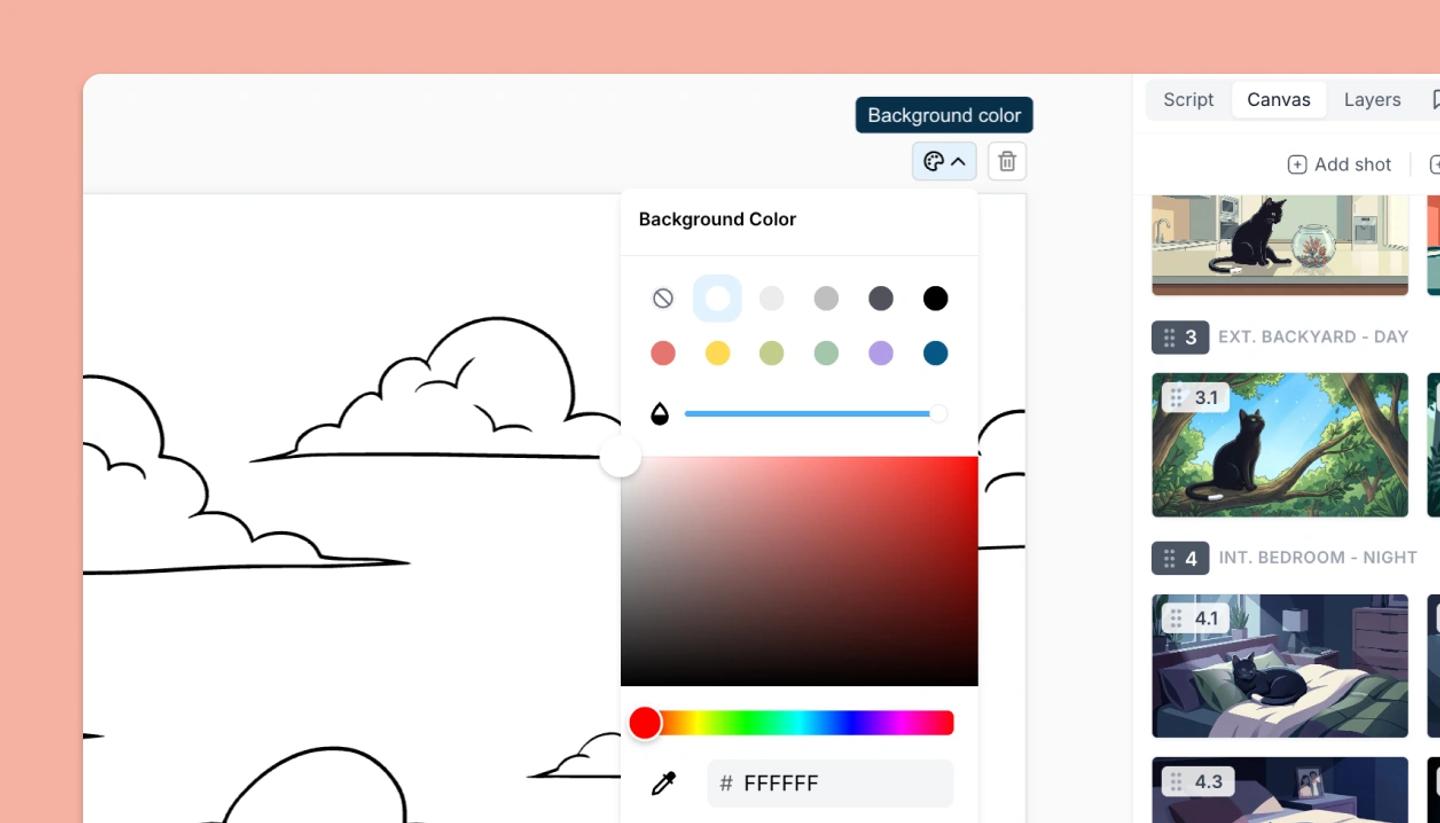
- Click the swatch at the canvas edge (tooltip
Background color). - Pick from the palette, use the eyedropper, or set the opacity slider. The default is white; transparent is allowed, which matters for PNG exports.
A photo or drawing
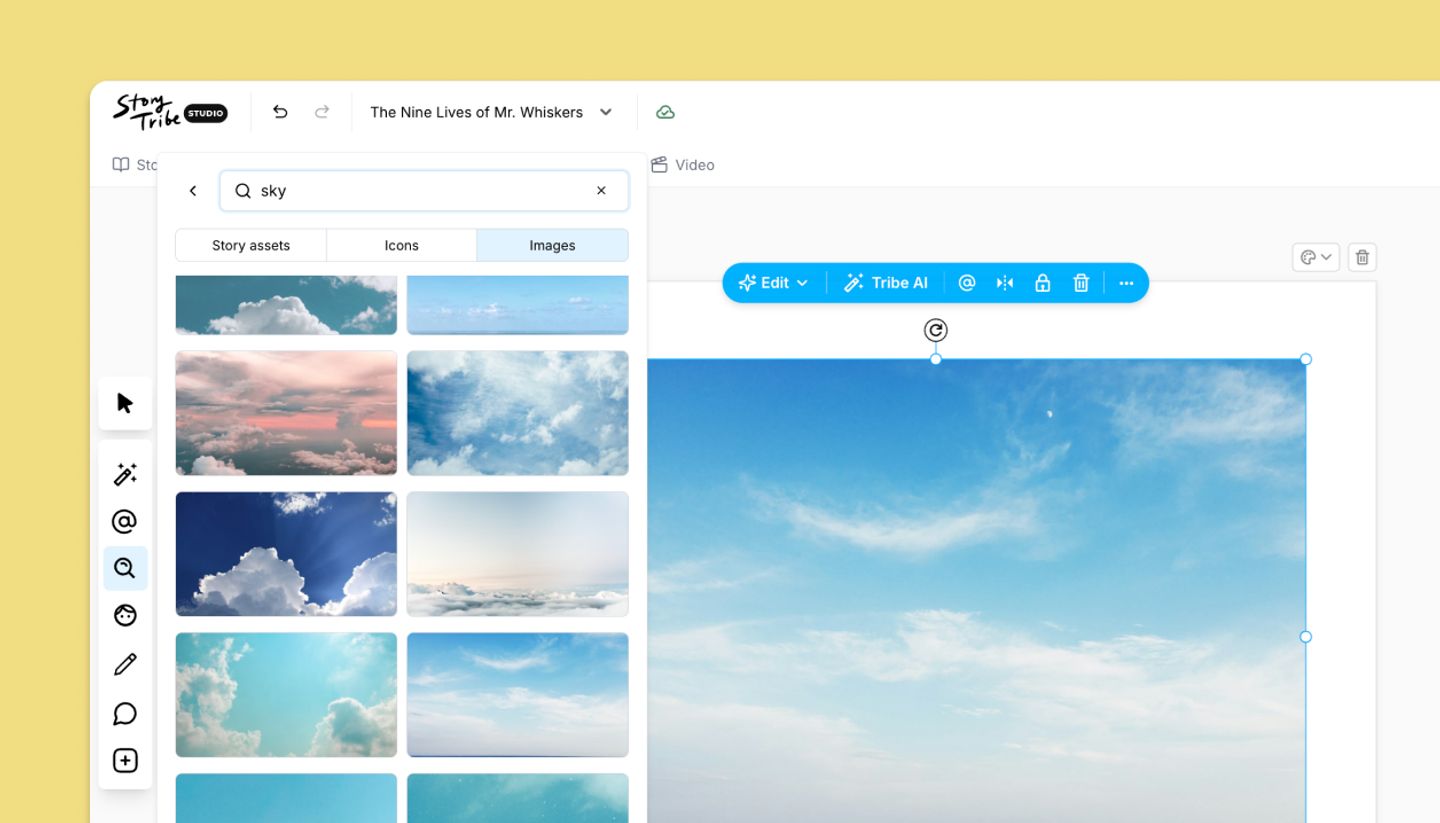
- Search and open
Imagesfor a stock photo, or useAdd›Uploadfor your own (JPG, PNG, SVG or WebP). Click to place it. - Resize it to fill the frame, then right-click and choose
Send to back(or press [ ) so characters sit on top. Lock it (⌘ Shift L) if you keep grabbing it by accident.
Generated with Tribe AI
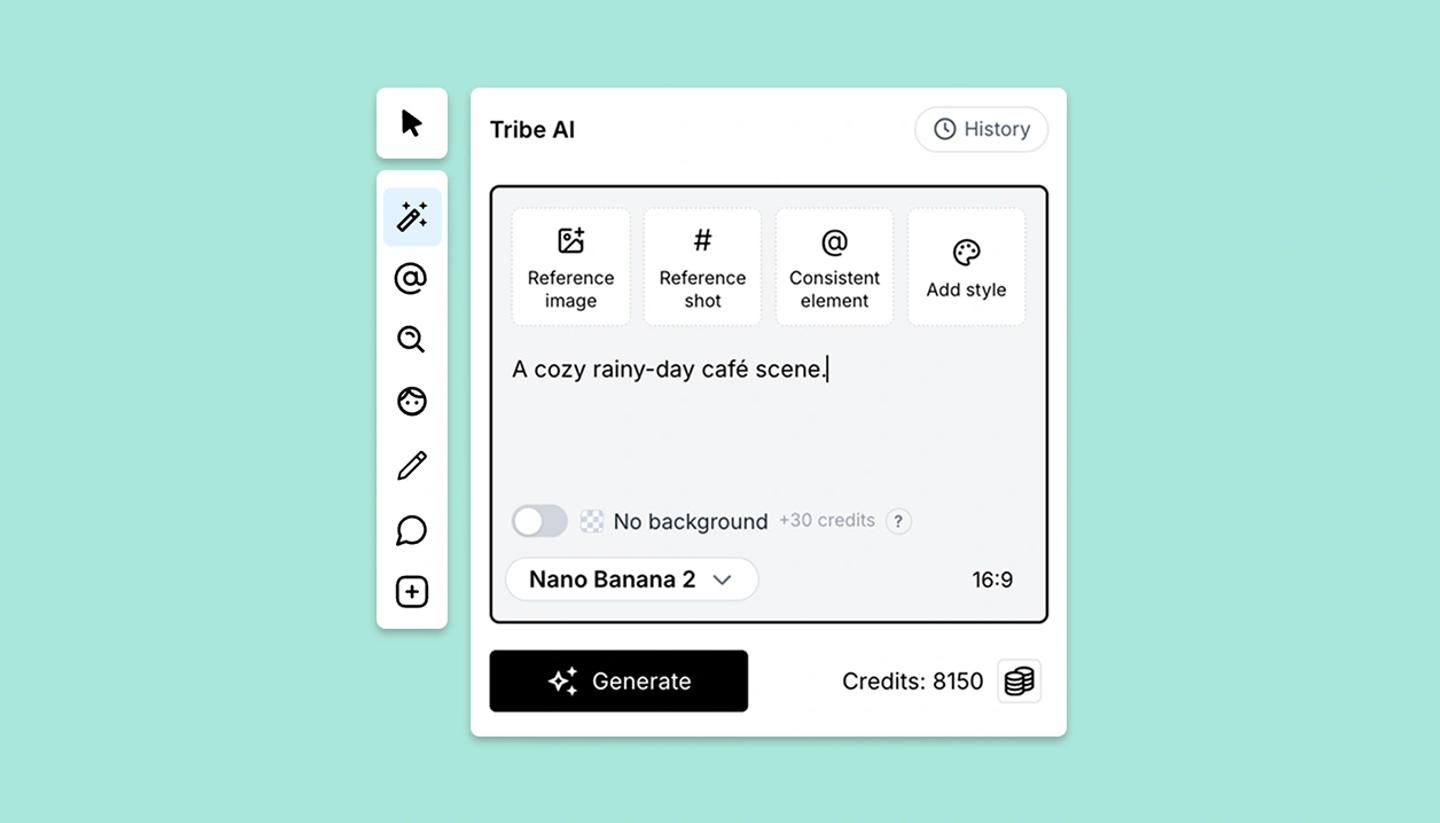
Describe the setting in Tribe AI and generate. When you place a result that has a background, it is scaled to fill the frame as a backdrop. A result generated with No background comes in as a cut-out you can place like a prop.
Changing or removing it
Select the image and press Backspace to remove it, or place a new one and send it to the back. If you can't click it because something covers it, pick it in the Layers panel.
Need more help?
Send us a message. We reply within 3 days, usually sooner.