Export on mobile
On a phone you get every export the desktop has: images, PDF and PowerPoint pages, screenplay files and the shot list. Your phone's share menu takes the finished file, so it can go to Photos or Files.
Last updated Sep 26, 2026
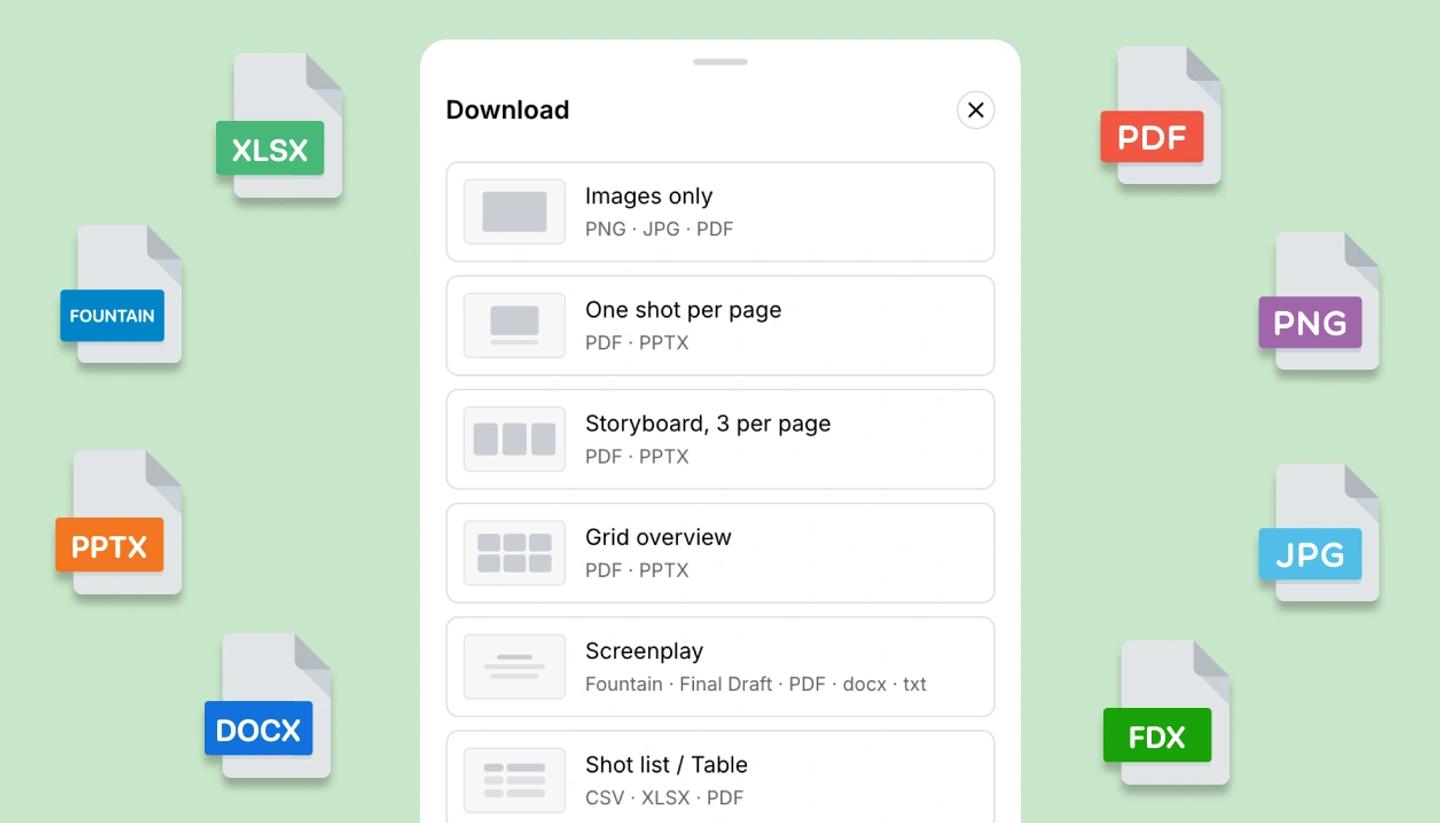
- Tap the three dots at the top right and choose
Download. - Pick what you want: Images only, One shot per page, Storyboard 3 per page, Grid overview, Screenplay, or Shot list / Table.
- Set the options for that choice, then tap
Download. - Your phone's share menu opens with the file. Save Image puts pictures in Photos, Save to Files keeps them as files.
Images only
- File type. JPG, PNG or PDF.
- Image quality. 1x and 2x are free. 3x and above need a paid plan.
- Select pages. Current page, all pages, or a list like 1-5, 8, 11-13. Up to 30 at a time.
- Several shots. A preview screen loads every frame first, then Download hands them over as separate images, so you can save them all to Photos.
Pages, screenplay and shot list
- The three page layouts. PDF, or PPTX on a paid plan.
- Screenplay. Fountain, Final Draft, PDF, docx or txt.
- Shot list / Table. CSV, XLSX or PDF.
- Include annotations. Offered for PDF in Images only, and for Storyboard 3 per page.
Video
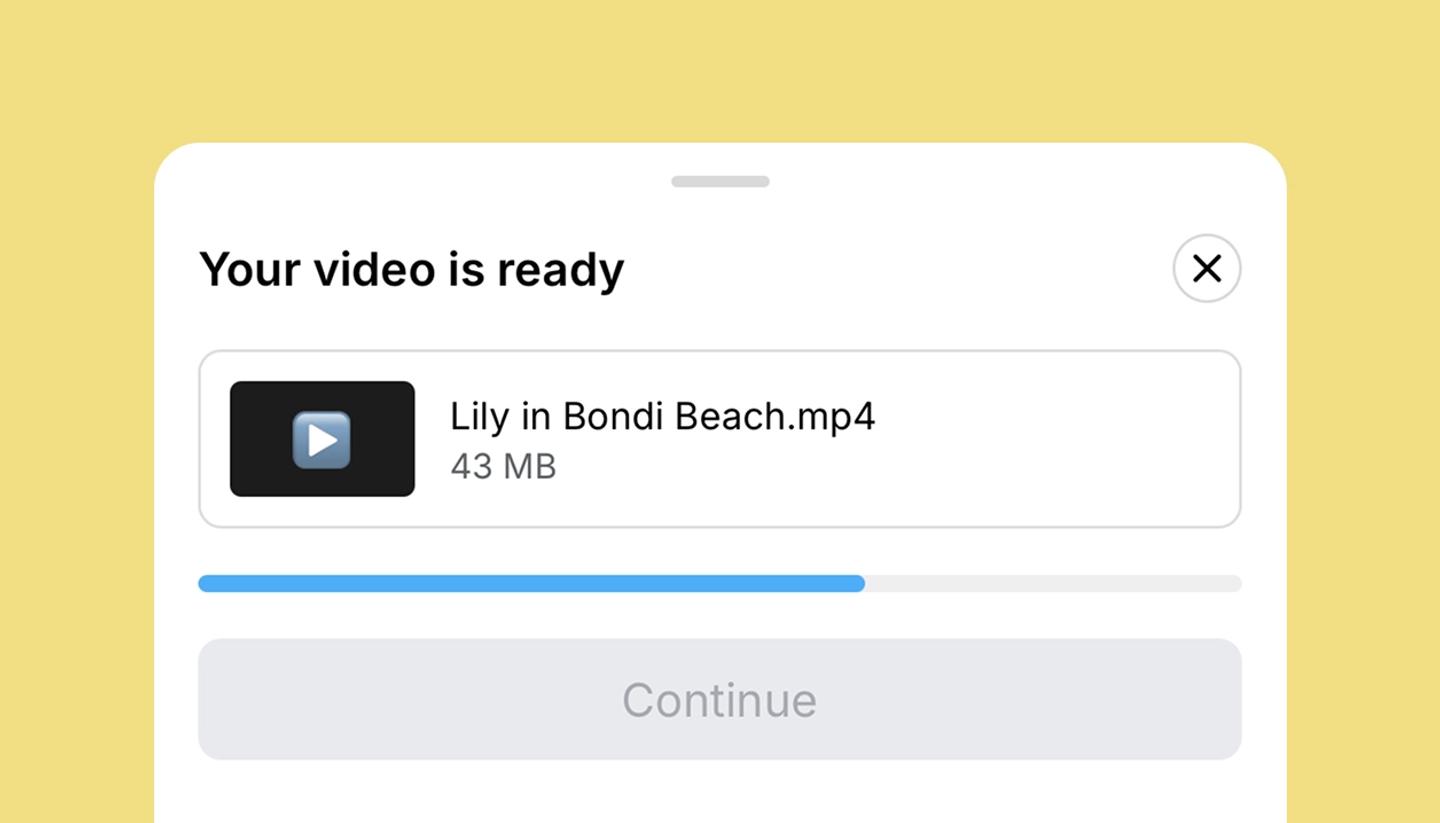
- Open the Video view and tap
Download video. - Wait for the file to be ready, then tap
Continue. - Your phone's share menu opens. Save Video puts it in Photos.
Downloading the video needs a paid plan. A video over 60 MB skips the share menu and saves to Files instead.
Was this article helpful?
Need more help?
Send us a message. We reply within 3 days, usually sooner.