Generative expand
Expand extends an image beyond its edges, painting in what the AI thinks continues there. Choose Freeform, Original or Fill scene, or a ratio, then Generate.
Last updated Aug 29, 2026
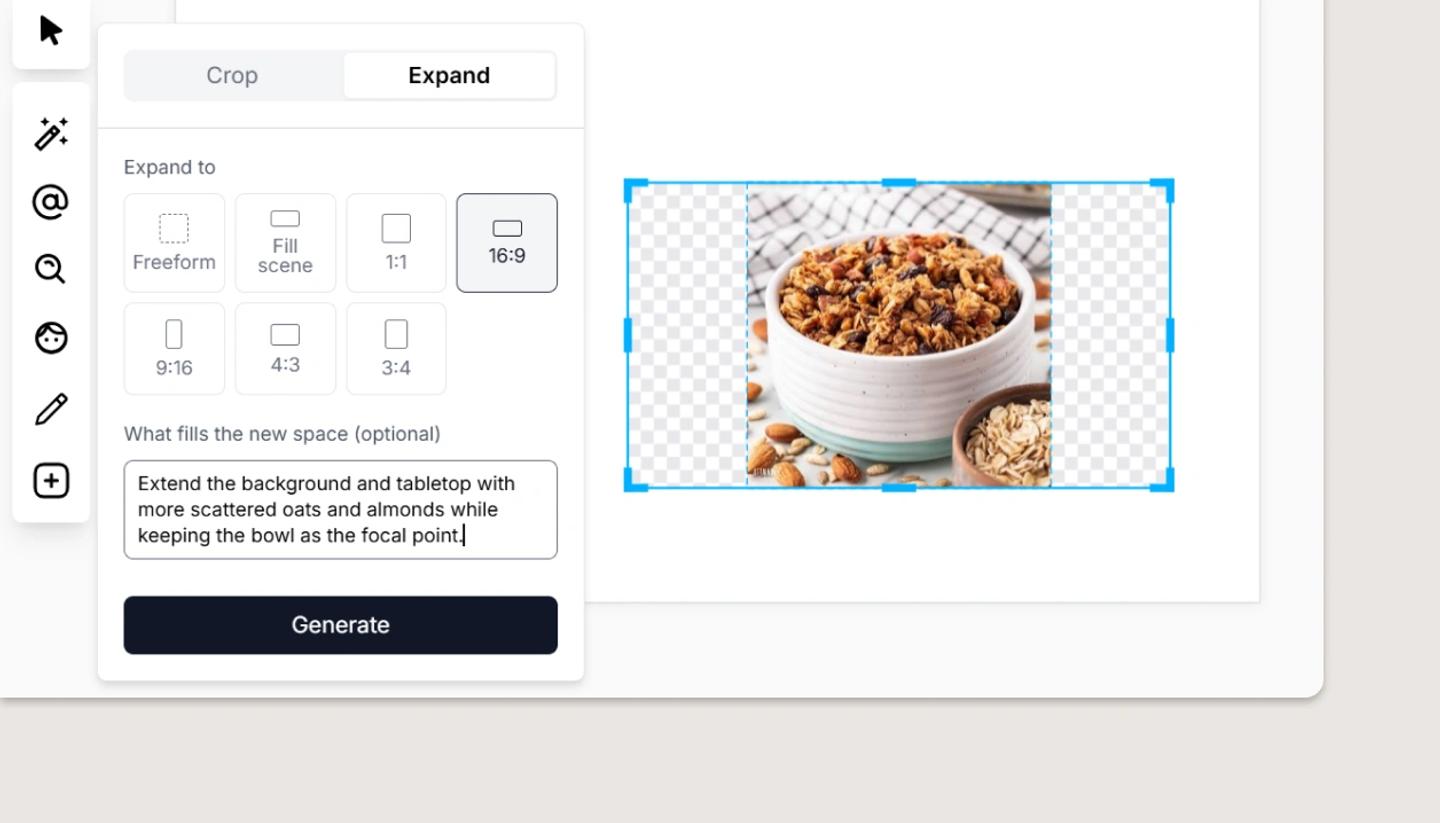
- Select the image and choose
Expandfrom its Edit menu (it's a tab inside the Crop panel). - Pick how far to go.
Freeformlets you drag the handles to the size you want.Originalrestores the uncropped image.Fill scenegrows the image to fill the canvas frame. Or pick a ratio: 1:1, 16:9, 9:16, 4:3 or 3:4. - Click
Generate(Expanding…thenExpanded). The new image replaces the old one at the larger size.
When it helps
- A 4:3 stock photo in a 16:9 frame: Fill scene paints the missing sides rather than stretching or cropping.
- A character framed too tight: expand upward to give headroom.
- Switching a project from 16:9 to 9:16: expand each backdrop vertically instead of regenerating it.
Was this article helpful?
Need more help?
Send us a message. We reply within 3 days, usually sooner.