Buying top-up credits
On a paid plan, click the credits button in the editor header or Top up in Settings › Billing, choose how many packs, and pay. Top-ups don't expire while your paid plan is active. Free plans upgrade first.
Last updated Aug 29, 2026
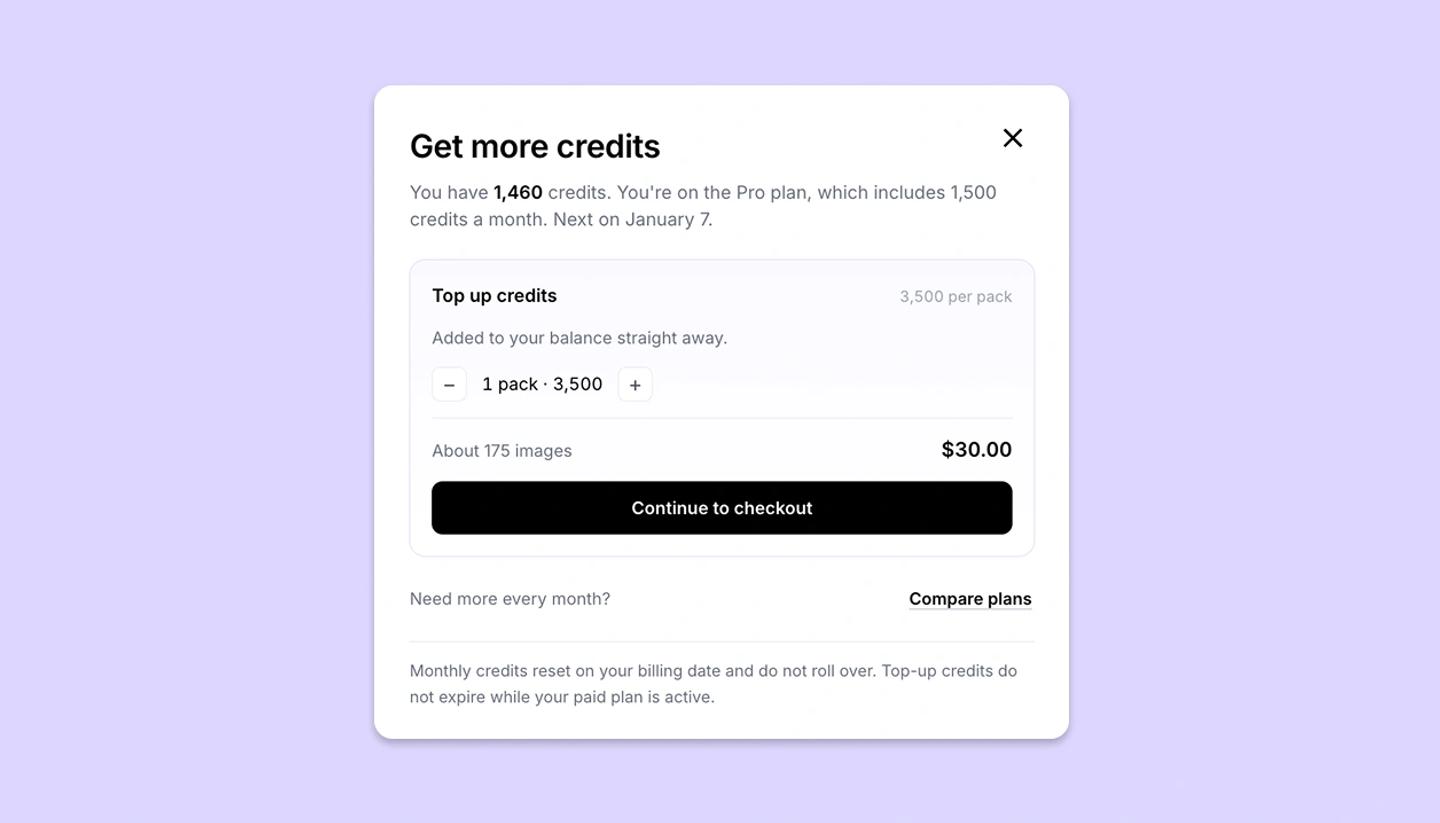
- Click the credits button in the editor header, or go to Settings ›
Billingand clickTop upon the AI credits card. TheGet more creditsdialog opens. - Under
Top up, choose the number of packs; the line shows the credits per pack and the total. - Click
Top up creditsand complete payment. The credits are added to your balance straight away.
Good to know
- Top-ups are for paid plans. On the free plan the button is grayed out, with the message Free users must upgrade to a paid plan before buying top-up credits. To see the plans, use the Upgrade section of the same dialog.
- Top-up credits don't expire while your paid plan is active; monthly credits reset on your billing date and don't roll over.
- In a workspace, the dialog says Credits go to your workspace for the whole team; only the workspace Owner can top up the pool, on the workspace's payment method.
Common questions
Was this article helpful?
Need more help?
Send us a message. We reply within 3 days, usually sooner.