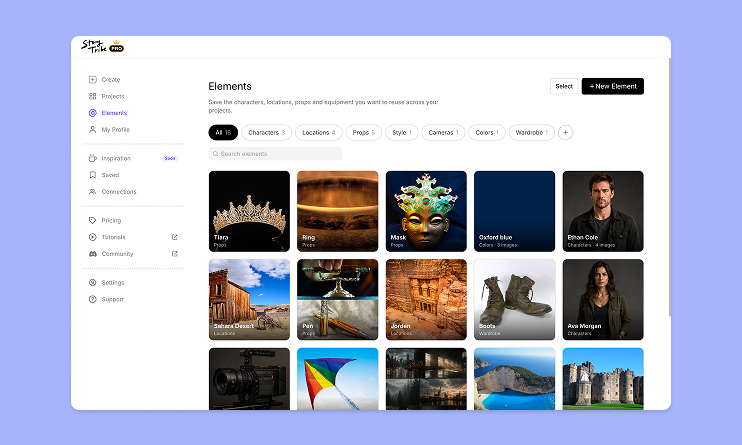
How to use Elements in StoryTribe
Build one reusable library of your characters, locations, props, and styles. Then bring any of them into a script, a storyboard, or an AI prompt with a single @.

StoryTribe
StoryTribe Team
Turn your storyboard into a shareable video — set the timing, add music, and send a link. No extra tools needed.
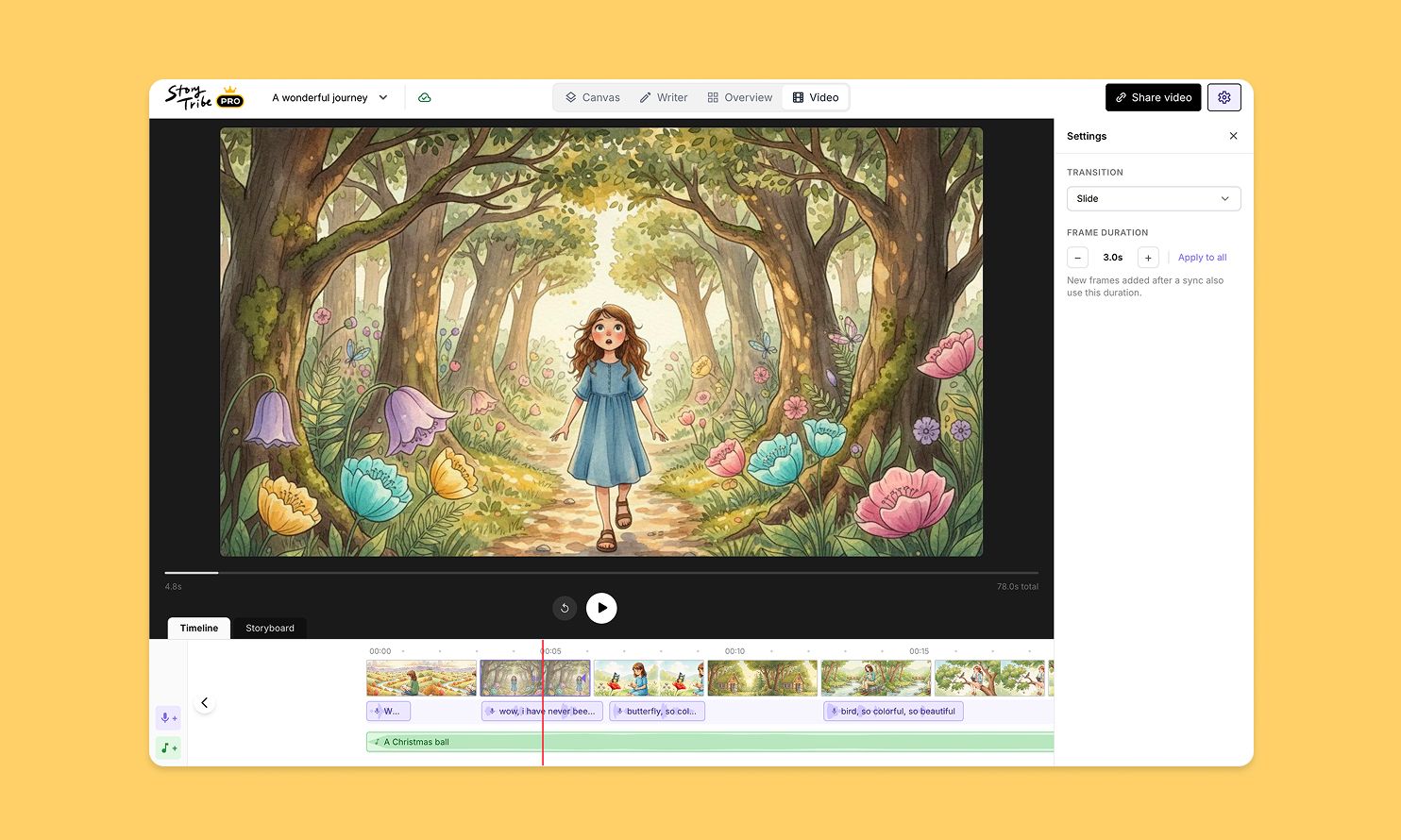
Video Editor turns any storyboard project into a video. Your storyboard frames become the video clips. There's nothing to re-upload or rebuild. You control the timing, layer music and AI voice-overs, then share a link. Your audience taps play. That's it.
Video Editor lives alongside your storyboard. You can switch between them at any time, and your storyboard always stays as the source of truth.
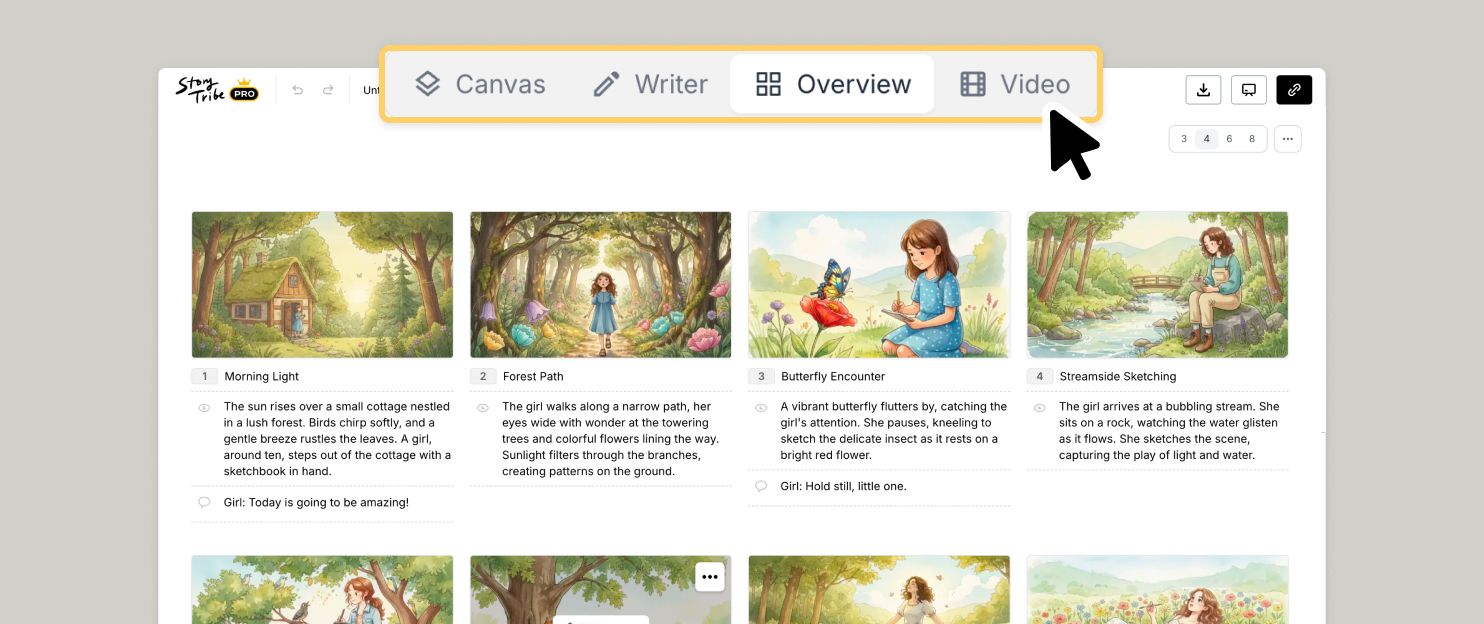
You can create a video directly from your storyboard. Use the top navigation bar to switch between project modes: Canvas, Writer, Overview, and Video.
Create a Video for the First Time:
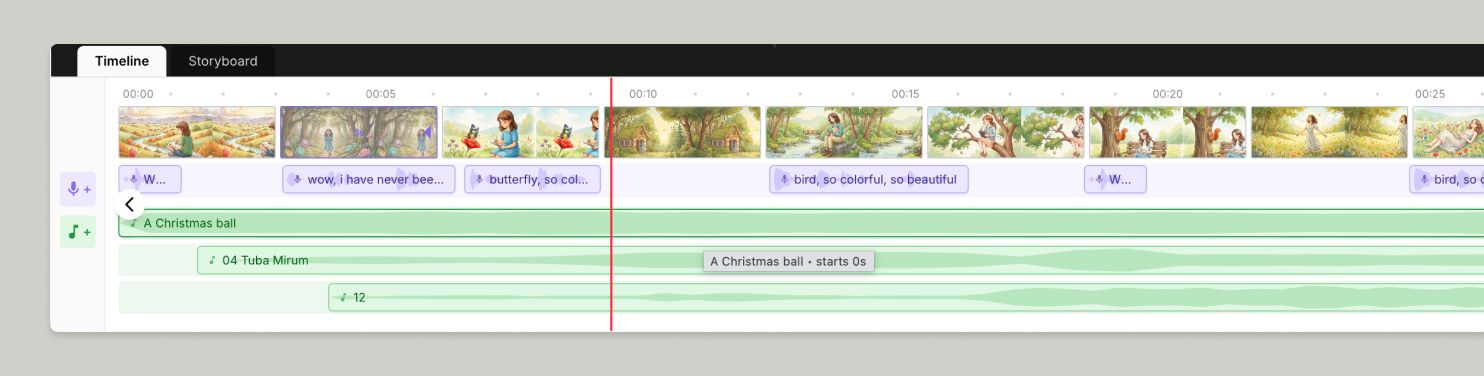
The timeline sits below the preview window and has several lanes: frames, voice-over, and music. The red play-head stays pinned in the middle while the timeline scrolls underneath it. Whatever sits under the red line is what's playing.
The timeline lanes:
Navigating the timeline:
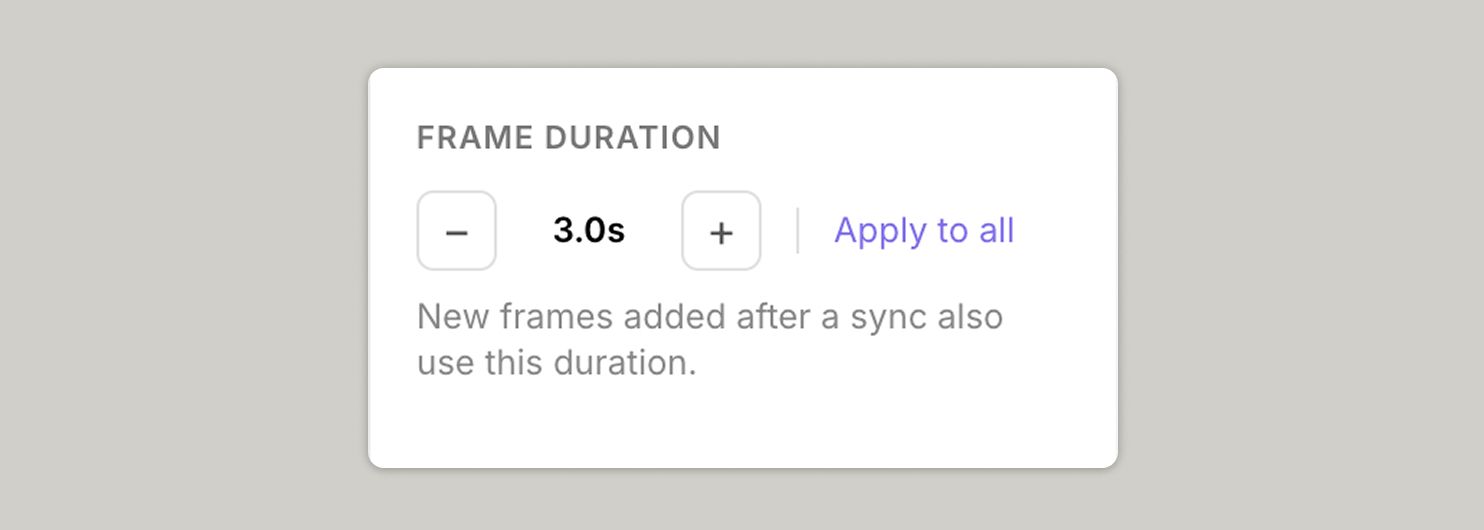
Each frame shows its duration; how long it stays on screen before the next one appears. The default is 3 seconds per frame.
To change a frame's duration:
Frame order always follows your storyboard. To reorder frames, switch back to the Canvas or Overview tab. The Video Editor picks up the change automatically.
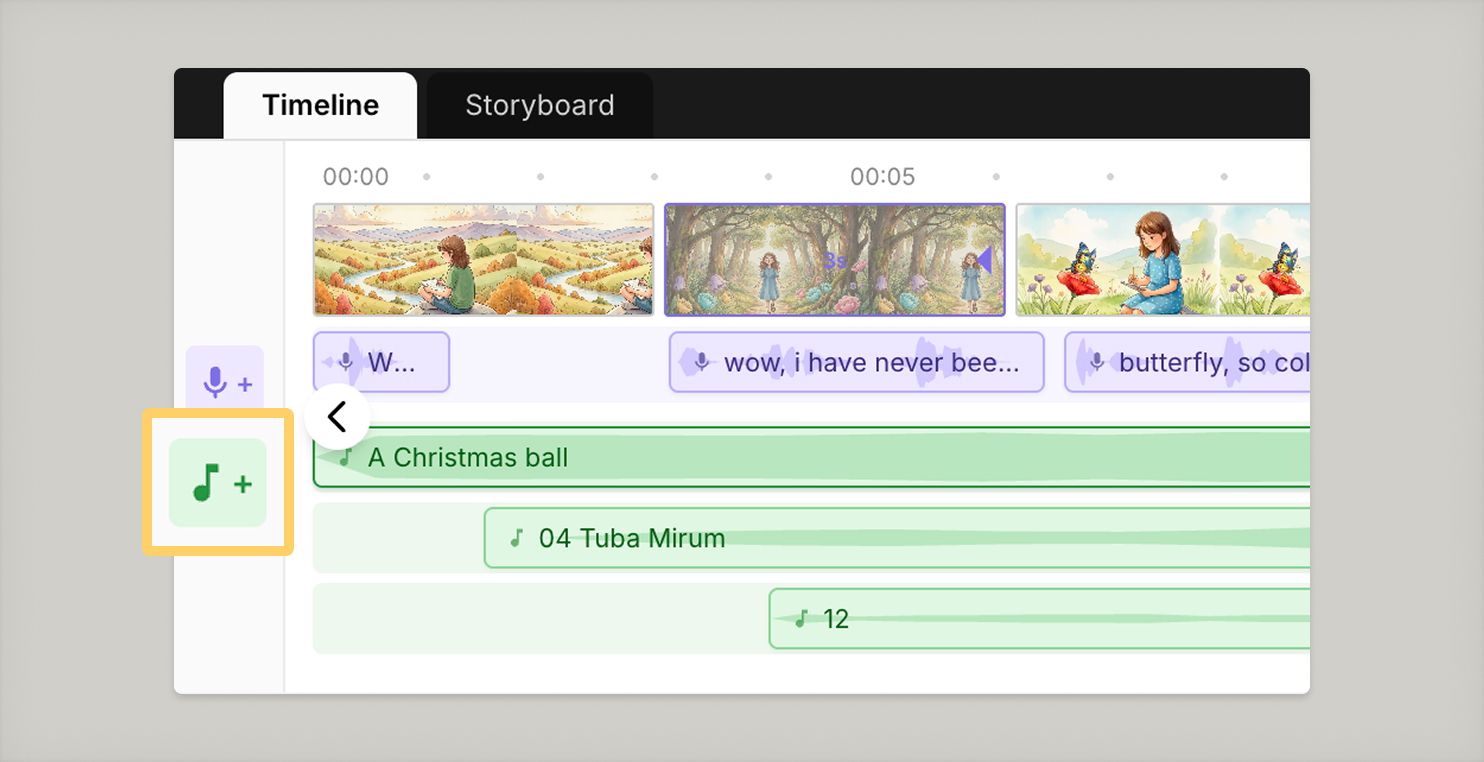
StoryTribe ships with a music library built into the editor. You can also upload your own tracks. Music tracks stack on up to three sub-lanes so you can layer background music with foreground stings.
Picking a track from the library:
When you find a track you like, just click the track itself to drop it onto the timeline at the playhead position.
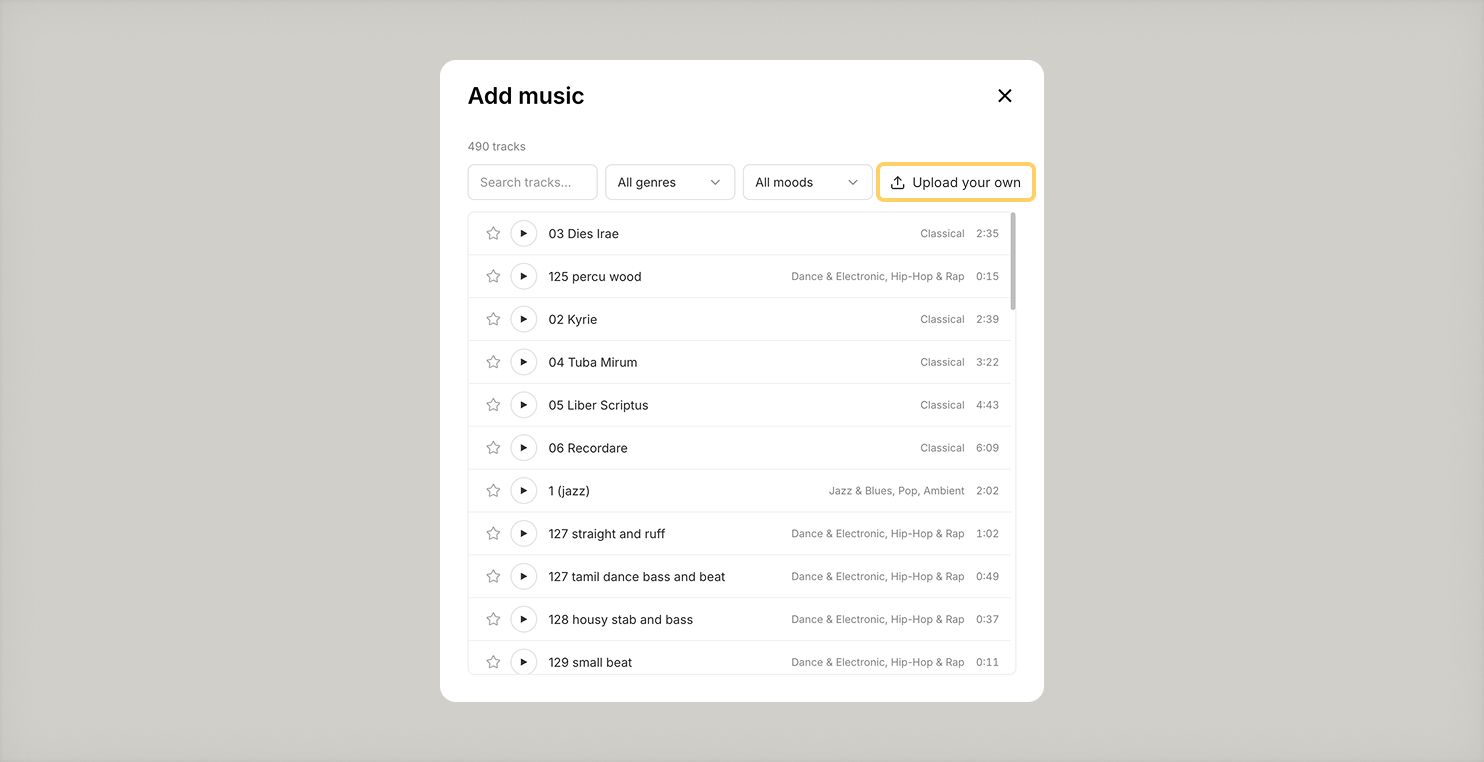
Uploading your own music:
In the music library, click Upload your own to pick a local file. Supported formats: MP3, M4A, WAV, OGG, AAC. Maximum file size: 50 MB.
Editing a music track:
Click a music block on the timeline to open its controls. From the popover you can adjust the volume, set fade in and fade out duration, loop the track until the video ends, duplicate the track, or delete it.
While selected, small purple triangles appear at each end of the block. Drag them inward to trim. The trimmed portion is what plays, and what loops if looping is on.
Layering multiple tracks:
You can stack up to three music tracks on parallel sub-lanes. To move a track to its own lane, drag it downward past the bottom of the current lane. A dashed preview row appears, and dropping there creates a new sub-lane. When you drag the only track out of a sub-lane, that lane collapses again.
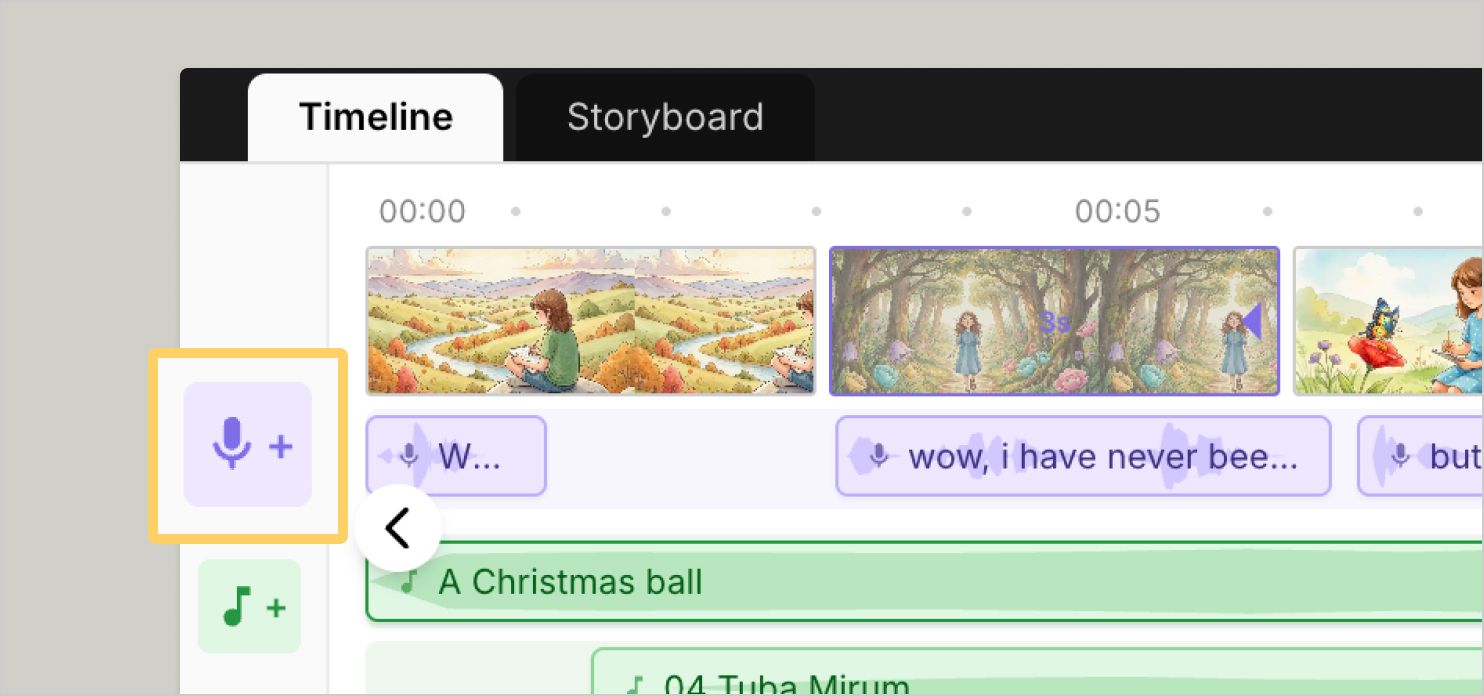
Generate realistic voice-overs in thousands of voices across 29 languages, and layer them onto your timeline. AI voice-over is a Pro feature.
Creating a voice-over:
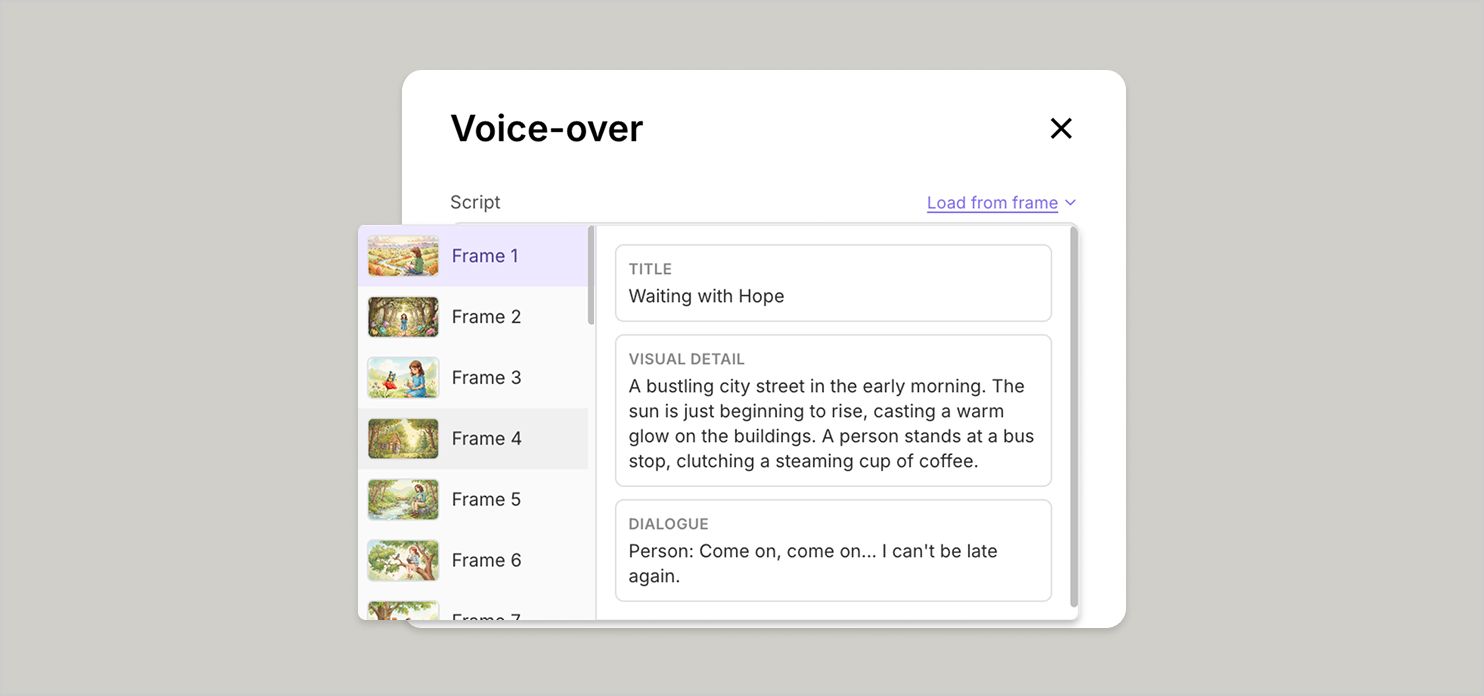
Loading scripts from your frames:
The Load from frame picker opens a two-panel browser. On the left, a thumbnail list of every frame in your storyboard. The frame under the play-head is highlighted by default. On the right, every script source on the selected frame: the frame's title plus any annotation fields with text (Voiceover, Dialogue, Visual Detail, and so on).
Click any card on the right to load that text into the voice-over script. It's a quick way to bring your existing storyboard writing into your narration without copy-paste.
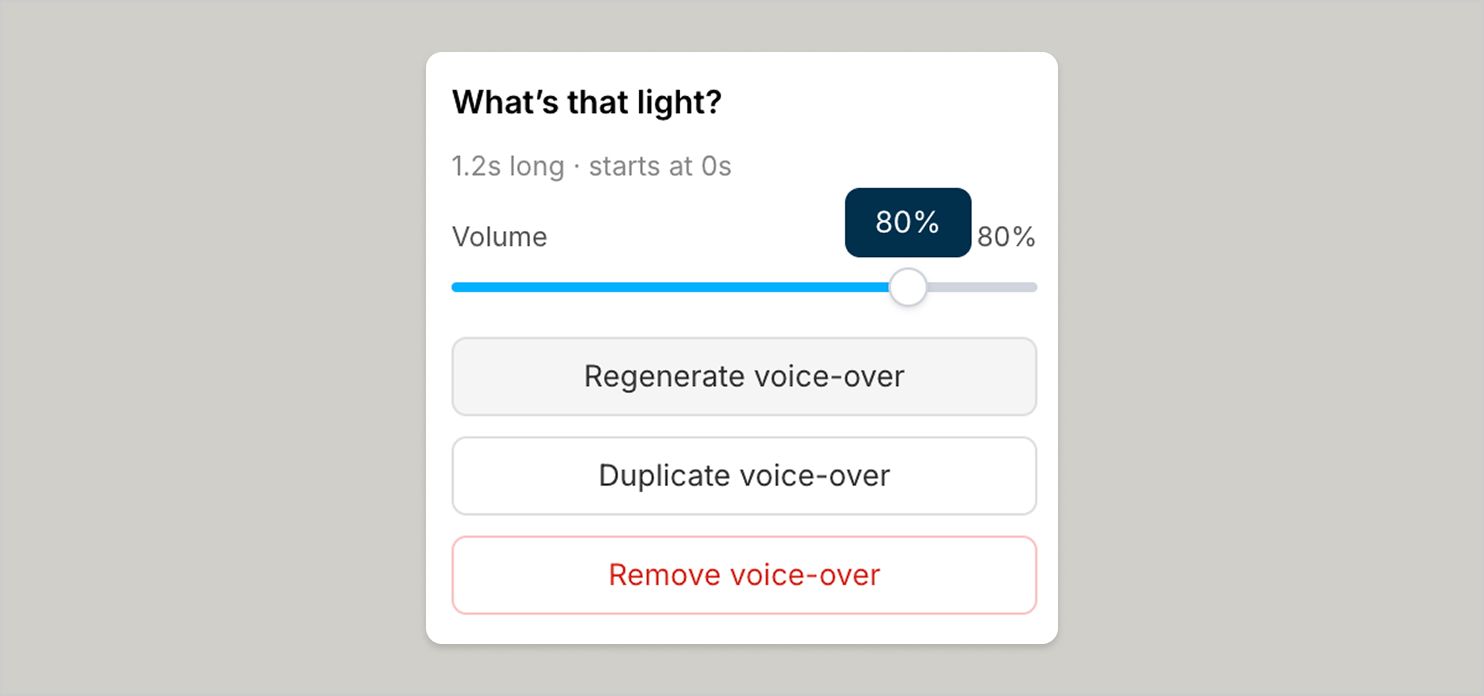
Editing a voice-over:
Click any voice block to open its controls. You can adjust the volume, regenerate (which reopens the editor so you can tweak the script or voice and re-render), duplicate the block in place, or remove it. Voice blocks also support the same trim triangles as music blocks; drag inward from either end to crop the audio.
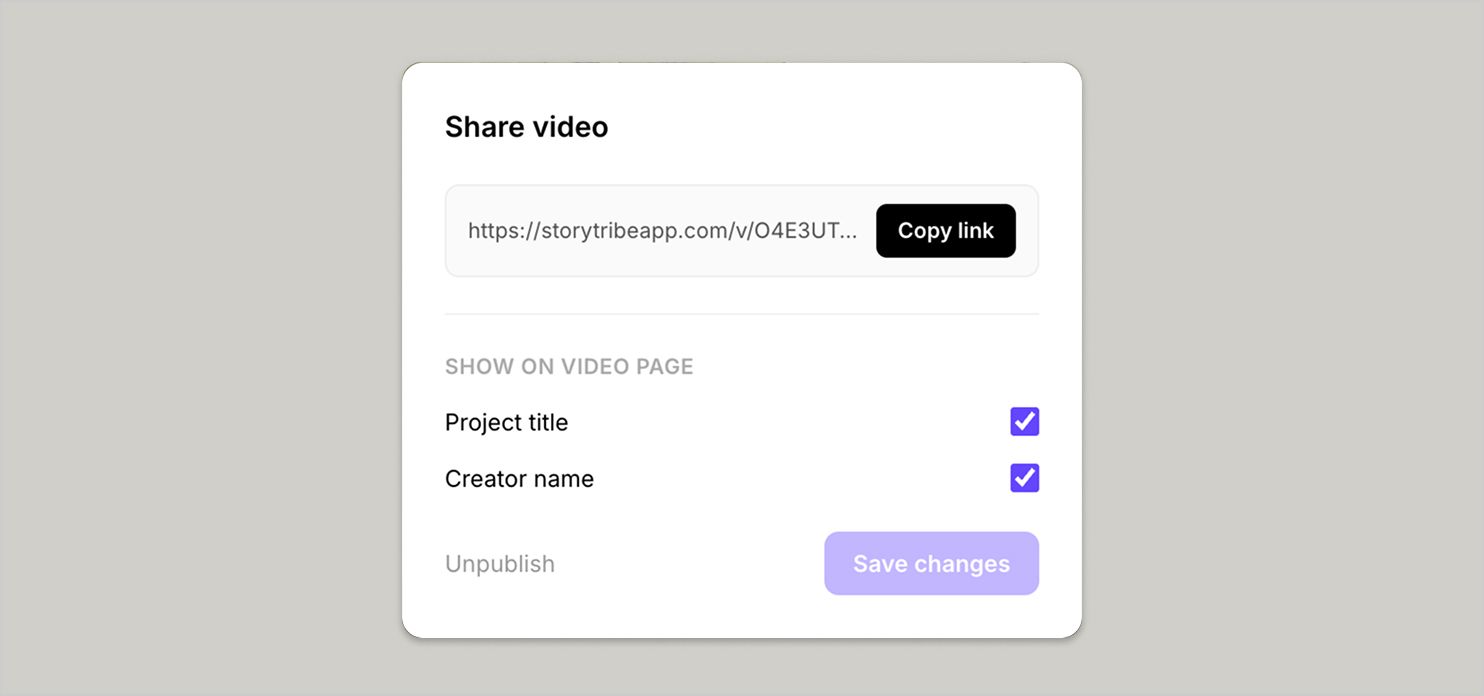
When you're ready to share your video:
Recipients open the link and play the video. Frames, music, and voice-over all in sync, exactly as you set them up.
To unpublish, go back to Share and toggle the video off. The link stops working immediately.
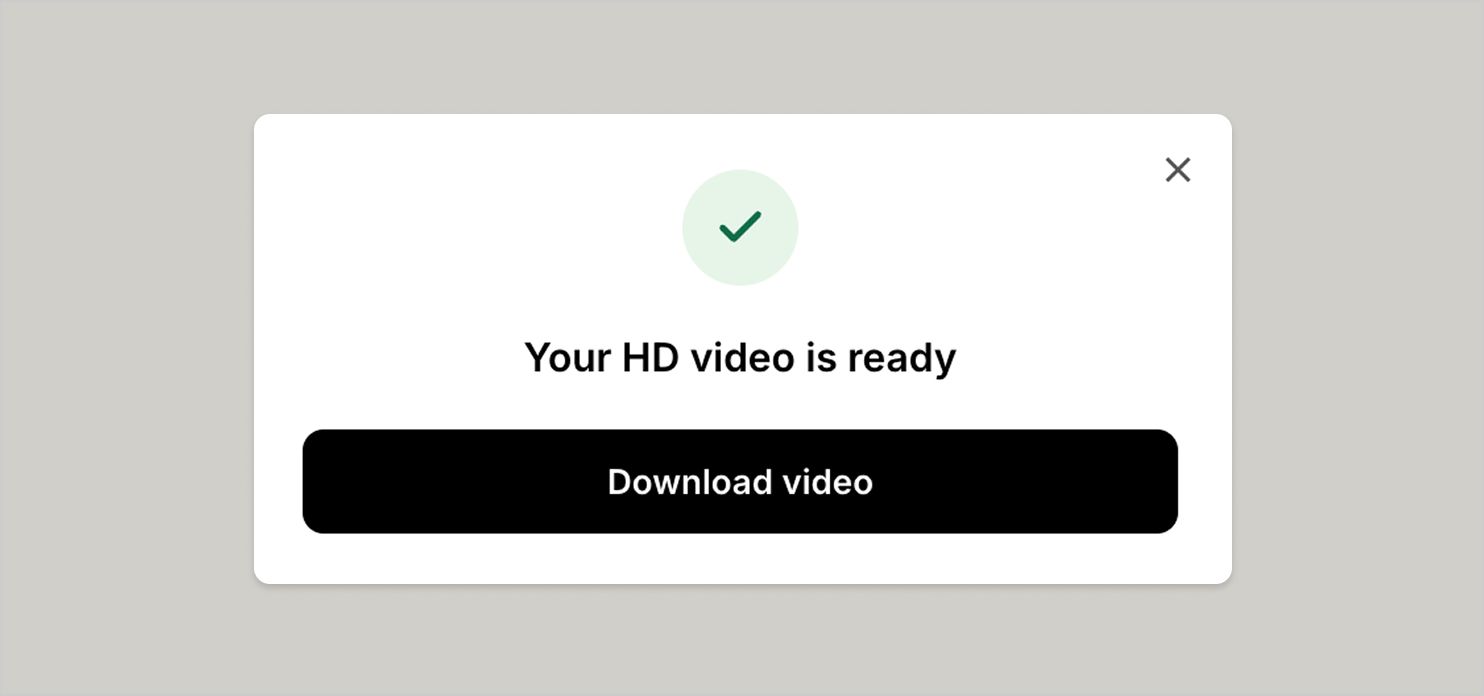
To download a video:
Your downloaded MP4 includes the voice-over and background music, synced with your scenes in the exact order you arranged them.

Your storyboard is always the source of truth. If you add, remove, or reorder frames in the storyboard after creating a video, the video editor will detect the change the next time you open it.
New frames are added to the timeline with the default duration. Deleted frames are removed automatically. Frame order always follows the storyboard.
Your music and voice-over tracks stay on the timeline through these changes. Adjust their positions if needed.
If you notice anything not working as expected, please report it to support@storytribe.com. Including a screenshot or short video recording helps us resolve issues faster.
You can also get help directly in the app by clicking the Help button (question mark icon) at the bottom of the screen, then selecting Help → Contact support to speak with one of our support team.
-> Start with our free storyboard maker
Build one reusable library of your characters, locations, props, and styles. Then bring any of them into a script, a storyboard, or an AI prompt with a single @.
StoryTribe
StoryTribe Team
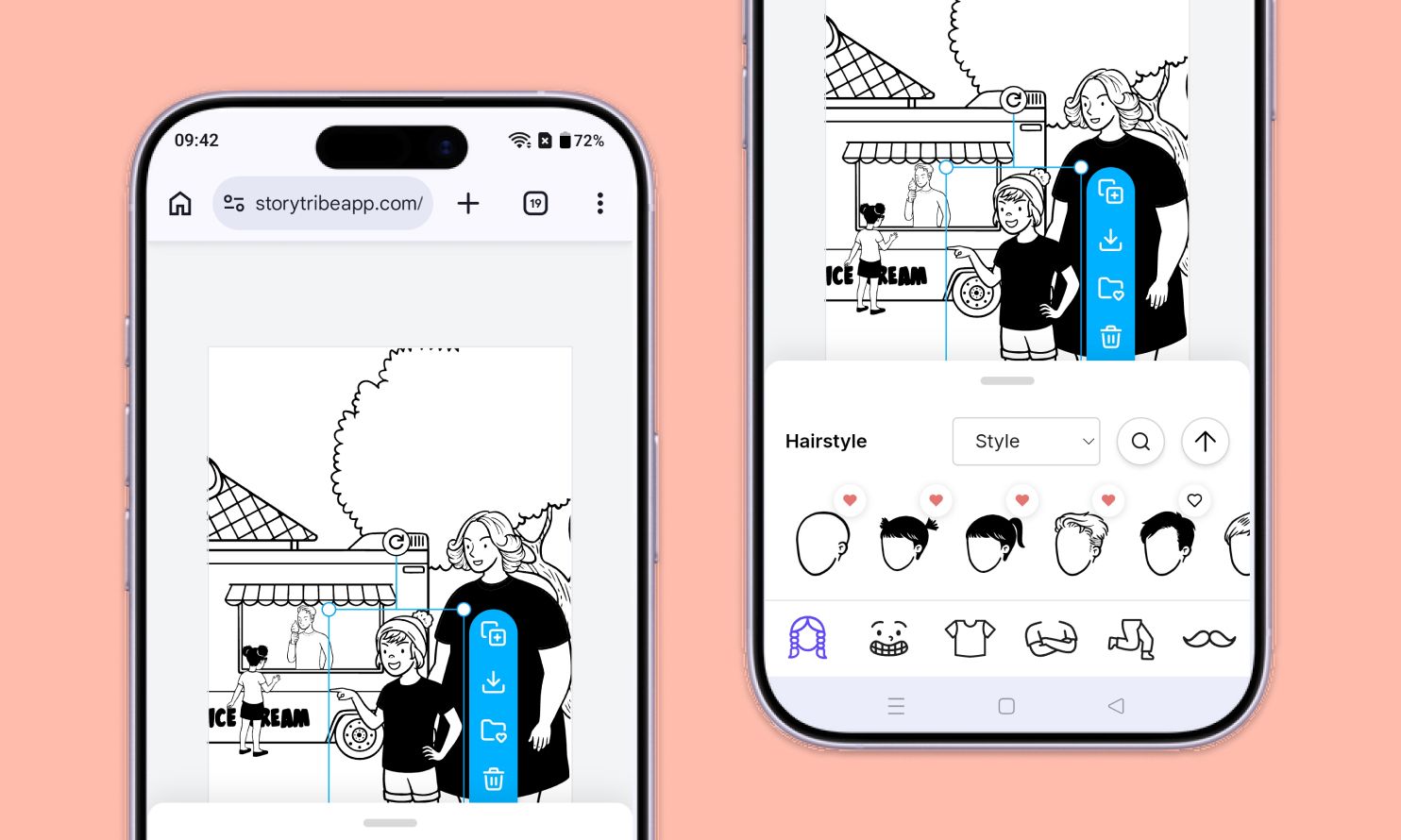
Don't let device-switching break your flow. The full StoryTribe editor now lives on your phone. Build wherever ideas strike.
StoryTribe
StoryTribe Team
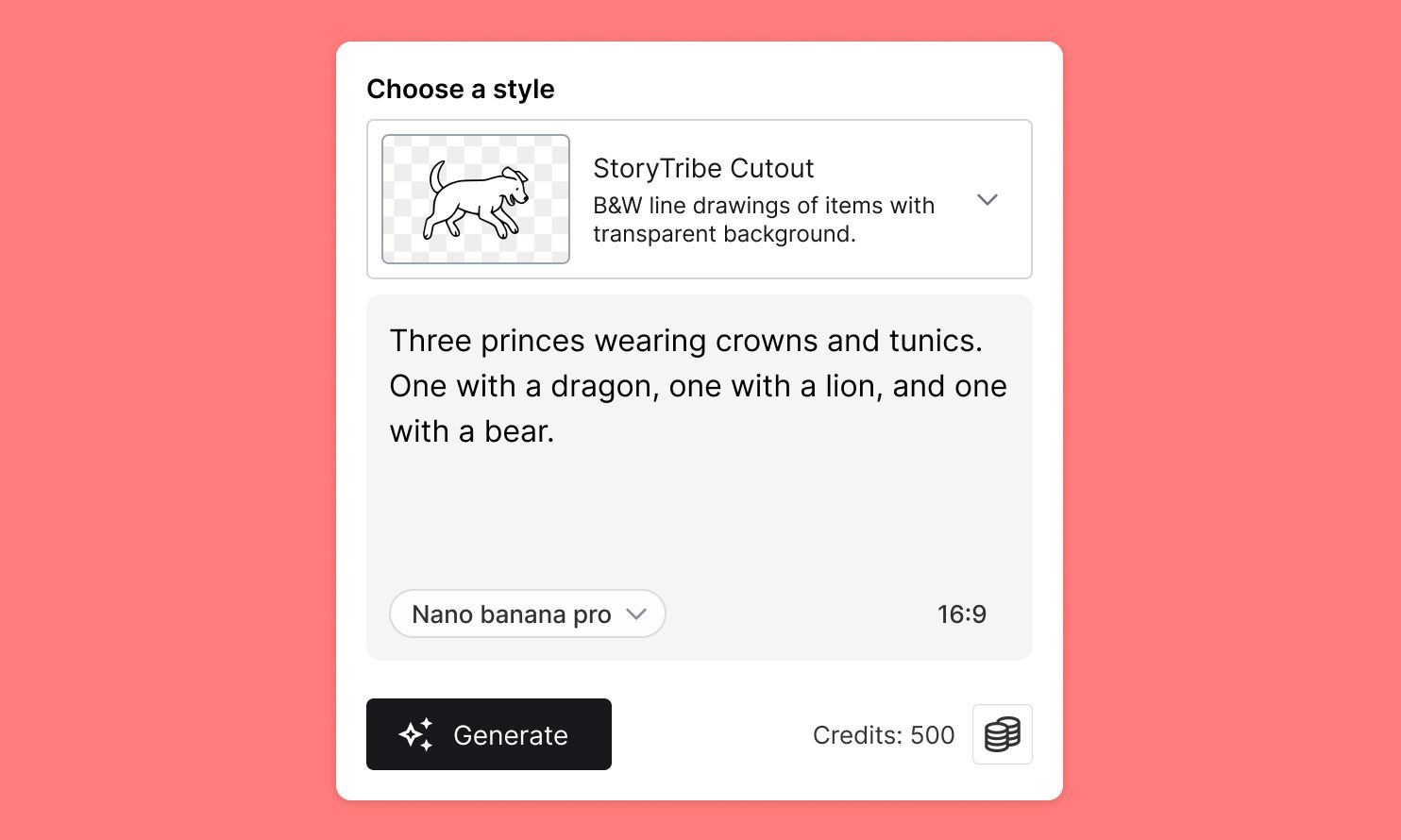
Create faster, iterate visually, and stay consistent — StoryTribe AI is designed for storytelling workflows, not one-off images.
StoryTribe
StoryTribe Team